
Log in to your vSphere client.
Select the Fabric Server you created.
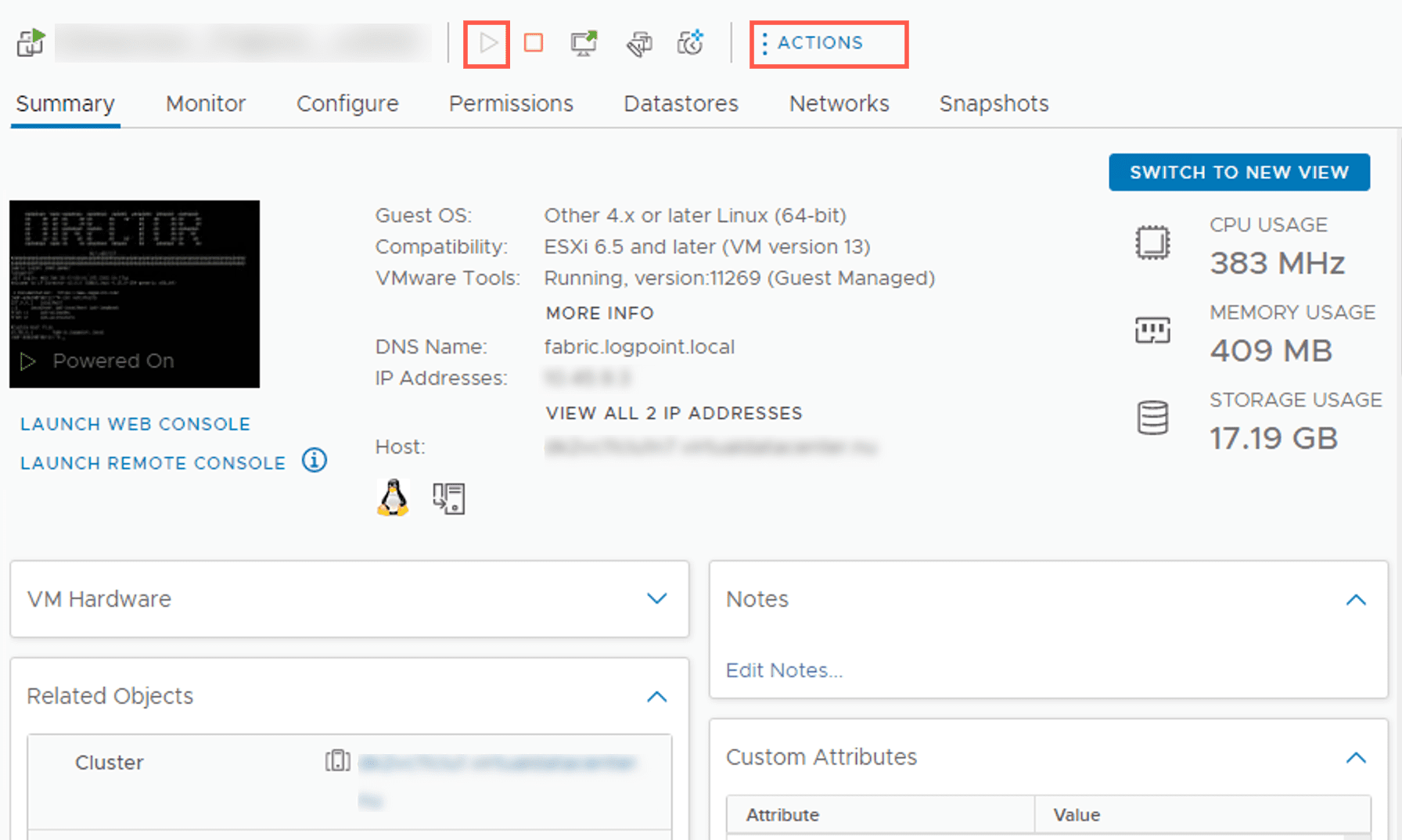
Powering On the Virtual Machine
Click the Power On icon. You can also turn on the machine from Actions >> Power >> Power On.
Click Launch Web Console.
In the web console, log in to the Fabric Server using the following credentials:
Username: cmdr-admin

Password: changeme
Install the Fabric Server. Go to Installation of Fabric Server to learn more.
Once you install the Fabric Server, you need to configure an SSH connection with the Fabric Server. To learn how, see Establish an SSH Connection with the Fabric Server.
Deploy the Fabric Server OVA and install the Fabric applications before accessing the API Server instance. Go to Installation of Fabric Server to learn more.
Log in to your vSphere client.
Select the API Server you created.
Powering On the Virtual Machine
Click the Power On icon. You can also power on the machine from Actions >> Power >> Power On.
Click Launch Web Console.
In the web console, log in to the API Server using the following credentials:
Username: cmdr-admin

Password: changeme
We recommended you to change the password after logging in for the first time.
Install the API Server. Go to the Installation of API Server to learn more.
Once you install the API Server, you need to configure an SSH connection with the API Server. To learn how, see Establish an SSH Connection with the API Server.
Install the API Server before accessing Director Console. Go to Installation of API Server to learn more.
Log in to your vSphere client.
Select the API Server you created.
Note down the IP Address.
Enter the IP address in your browser and connect to Director Console.
Example:
https://<IPaddress>
Log in to Director Console using the following credentials:
Username: root

Password: changeme
We recommend you change the password immediately after the first login.
Upload a Director license. Go to the Uploading a Director License to learn more.
Log in to your vSphere client.
Select the LPSM you created.
Click the Power On icon. You can also power on the machine from Actions >> Power >> Power On.
Click Launch Web Console.
In the web console, log in to LPSM using the following credentials:
Username: li-admin

Password: changeme
Execute the change-ip command to enter the system IP.
Enter the new IP address in your browser and connect to LPSM.
Example:
https://<IPaddress>
Log in to LPSM using the following credentials:
Username: admin

Password: changeme
We recommend you change your password immediately after you login for the first time.
When you access LPSM, you need to configure an SSH connection with the LPSM. Go to Establish an SSH Connection to learn more.